Contents · Join with an invite link
Guide
Join with an invite link
Join your organization with the invite link a teammate sent you.
Steps
- Paste the link into Invite link or server address on the first screen. Connected appears below.
- Enter your email, check I agree to the collection and use of personal information (required), and click Send code.
- Enter the 6-digit code from the email and click Verify. The code works for 10 minutes.
- Check the organization name and who invited you. Enter a display name and a username, then click Continue.
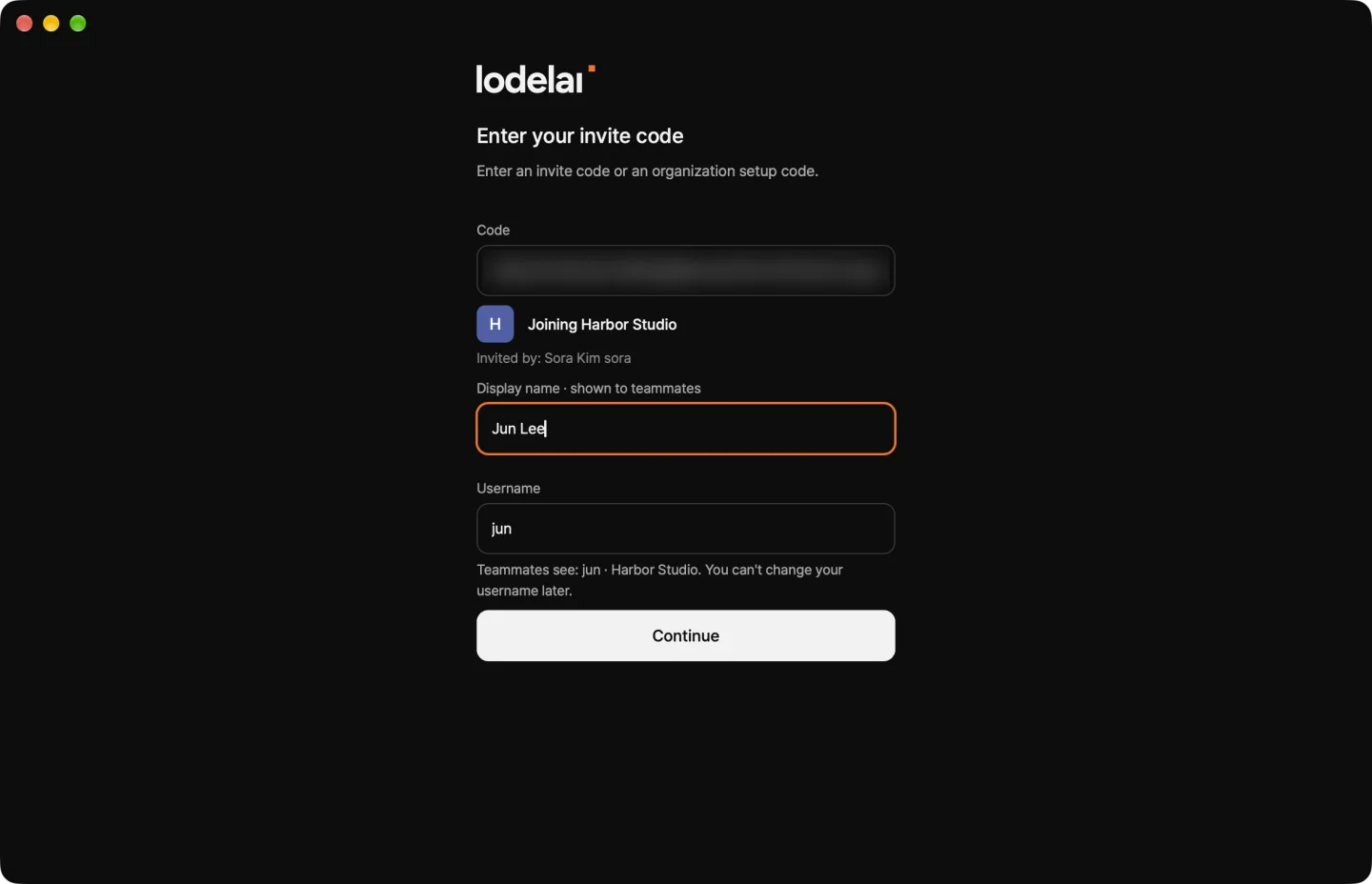
- Teammates see your username, and you can't change it later.
- Don't join an organization you don't recognize.
Add another device
Each person can use up to 4 devices.
- On the new device, sign up with the same server address and the same email.
- On This email already has an account, click Add this device.
- A new device card appears in Settings › My account › My devices on your other device. If the verification numbers match, click Verification numbers match, confirm.
If you didn't add it, click If you didn't add it to disconnect it right away. Your teammates don't need to confirm anything.
If something's off
- "This invite code can't be used" — A link works once, for 7 days. Ask your admin for a new one.
- "The code expired" — Click Resend code after 60 seconds.
- You want to join another organization — One email, one organization. Sign up with another email.
Next: Open an agent