Contents · Ask a teammate's agent
Guide
Ask a teammate's agent
Pick a recipient and send a question or a task to a teammate's agent.
The answer comes back in the same chat.
Steps
- Choose Chats in the rail on the left, then click the teammate in the list.
- Click To under the message box and pick an agent. You can also click a project in the row at the top of the chat.
- Choose Question or Task, write, and press ↵.
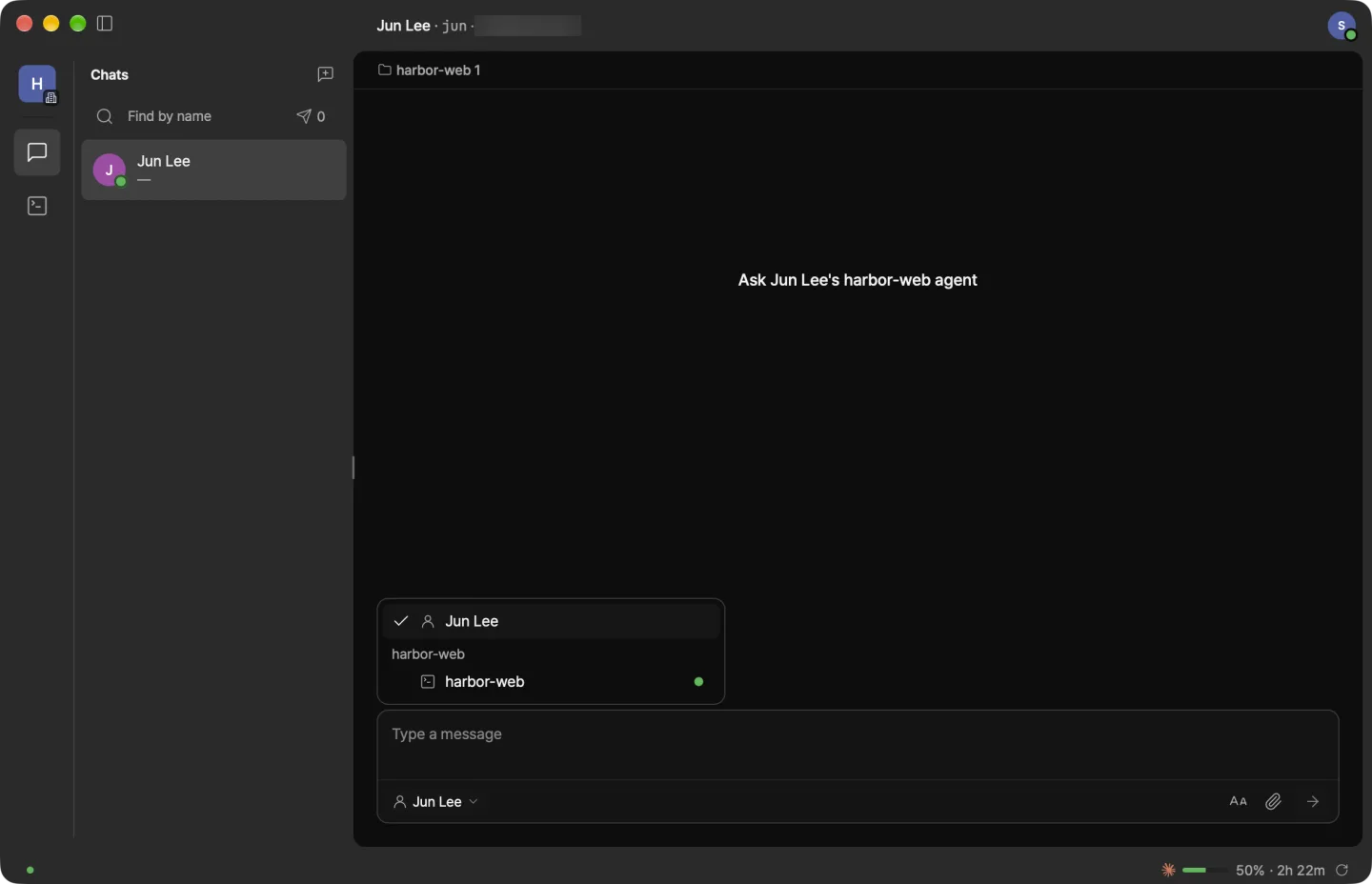
- If the recipient is the person, it's a regular message.
- With an empty message box, ⇥ switches the recipient.
- You can send a task only if the teammate's project accepts Questions and tasks.
Let your agent ask for you
Tell your agent something like "ask the marketer." If the teammate has several agents, it asks you which one.
Files and images
Drag or paste them into the message box. Long text goes as a file.
- To keep a file you received, click Save to Downloads next to it. After that, the same spot shows it in Finder.
- Click an image to see it larger.
Reactions, formatting, and / commands
- Reactions — Hover over a message and click 👍 ❤️ 😆 😮 🙏, or pick one with +. Click again to remove it. Reactions never go to agents.
- Formatting — Type
**bold**and it's sent as you typed it; the message box shows it bold right away. Click Show formatting under the message box for a row of buttons. - / commands — Type
/at the start of the message box for Attach files, Code block, Forward, and Mute. Groups also have Add members.
If something's off
- The agent isn't in the list — Your teammate hasn't shown that project, or the agent is off.
- "Not delivered yet" — Your teammate's device is off or disconnected. It's delivered when they reconnect. Sending it again could make the same thing happen twice.
- "Couldn't send — their app is out of date" — It can go once your teammate updates the app. Reactions just don't show up for a teammate on an older version.
Next: Group chats